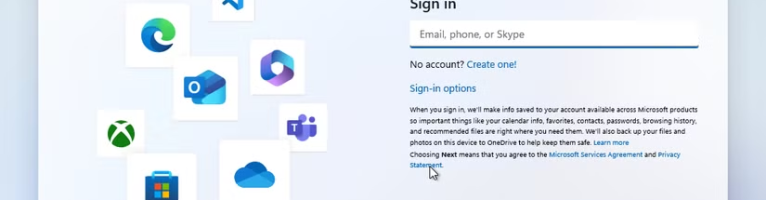
As most of you will know, all the old tricks to do this are being blocked by Microsoft, same as all the methods for activation too.
I will keep this page up to date with fixes that still work in 2025, going into 2026.
For now, either use Rufus to create your own media or, if you buy a PC/Laptop preinstalled and need to create an offline account, you can still use this method (as of December 2025)
Go through the setup as normal until you get to this page:
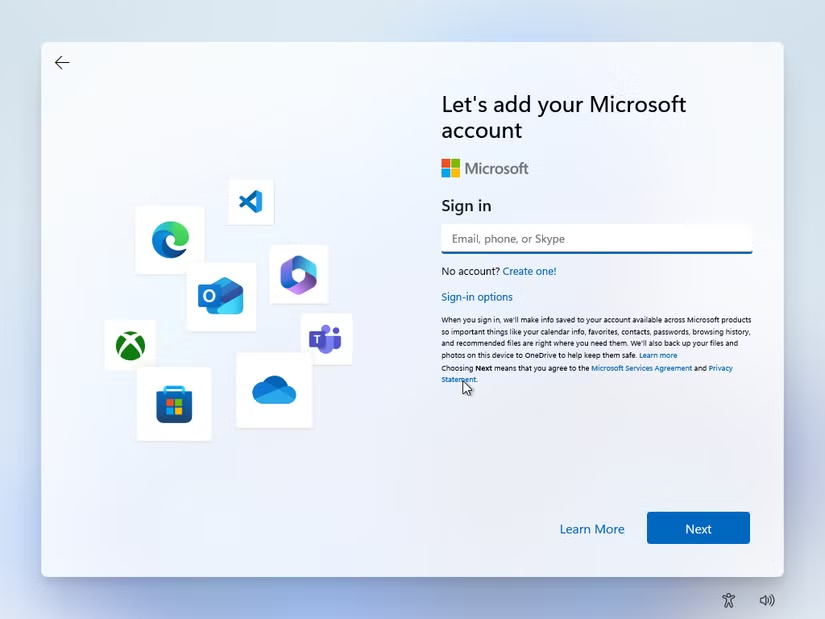
Now press Shift + F10 to open up a Command Prompt Window and type: oobe\bypassnro
It should look exactly the same as this:}
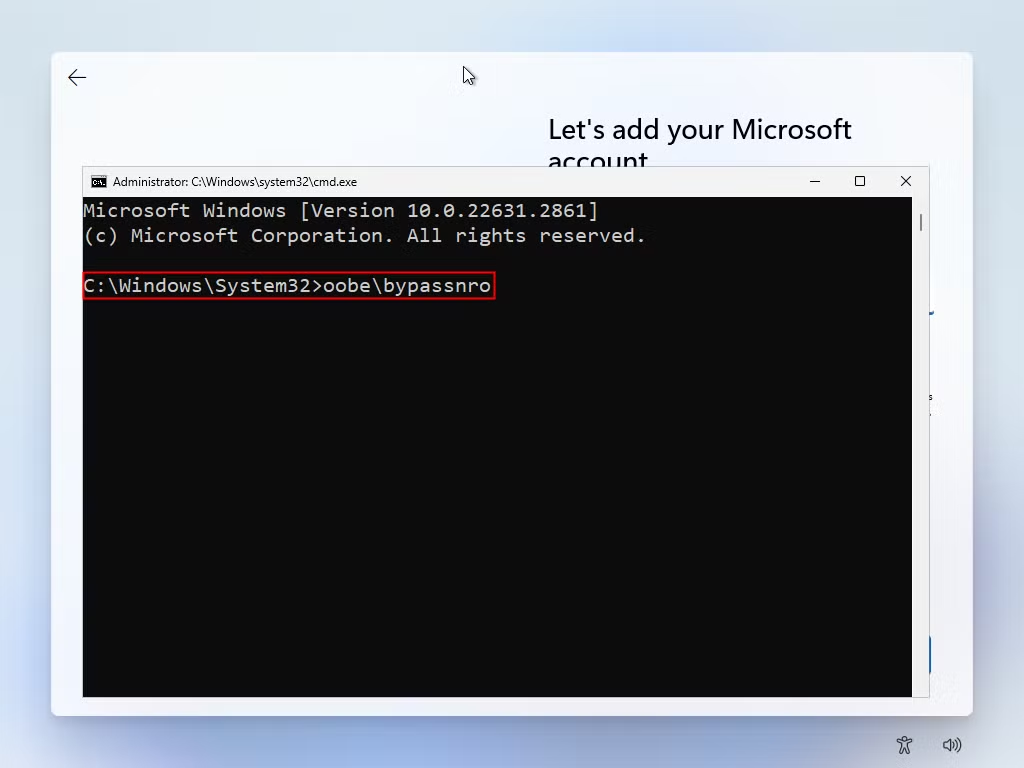
Now, if you can, turn your Wi-Fi OFF or unplug the LAN cable if you have one, this just stops Windows trying to connect again, it’s not always possible, so press SHIFT + F10 again and type this: ipconfig /release command and press Enter to disconnect from the network.
If you’ve done this correctly you’ll see an “I Don’t Have Internet” option, or you’ll be prompted to create a local account immediately, meaning this step has failed.
UPDATE: The above way no longer works, so we need to do it this way:
Before you enter the command to disable Wi-Fi, you must know the correct name of the wireless interface that you want to disable. So, first, enter the following command to view the names of your network interfaces:
netsh wlan show interfaces
Now, type the below command which is used to disable WiFi in Windows 10/11:
netsh interface set interface name=”WirelessNetworkName” admin=DISABLED
Replace WirelessNetworkName with the name of your wireless interface (usually Wi-Fi)
After typing the command, press Enter to run it; it will disable Wi-Fi on your PC.
Once your OS is Installed you need to ENABLE the Wi-Fi adapter, run the command (with ENABLE) or run the Wi-Fi Trouble-shooter and that will do it for you!
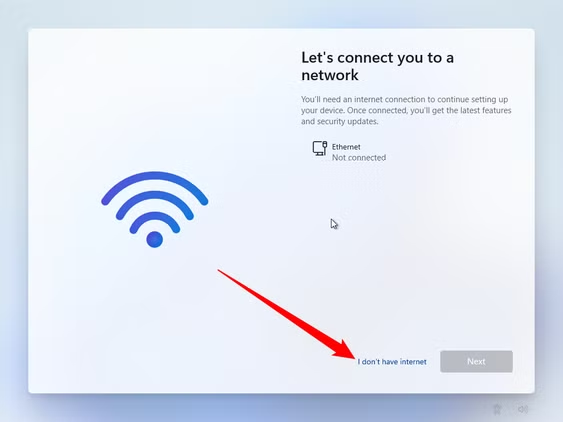
That’s it, now type your desired account name and press ENTER, the PC will reboot and start to give you a local account 🙂
This is not going to work for ever, as MS have already started to block it:
Starting with the release of Windows 11 build 26120.3653 (Beta) and build 26200.5516 (Dev), Microsoft has announced that it’s officially removing the ability for users to run the OOBE\BYPASSNRO command to bypass the requirement to create a profile using a Microsoft Account. According to the company, this change was made to enhance security and the experience.
Let’s look at another solution:
Skip Microsoft Account during Windows 11 install using Registry
To bypass the internet and Microsoft Account requirements, in the Out-of-box Experience, follow these steps:
- Open Command Prompt using the “Shift + F10” keyboard shortcut on the region settings page.
- Type the following command to modify the Registry to bypass the internet and Microsoft Account requirements, and press Enter:reg add HKLM\SOFTWARE\Microsoft\Windows\CurrentVersion\OOBE /v BypassNRO /t REG_DWORD /d 1 /f
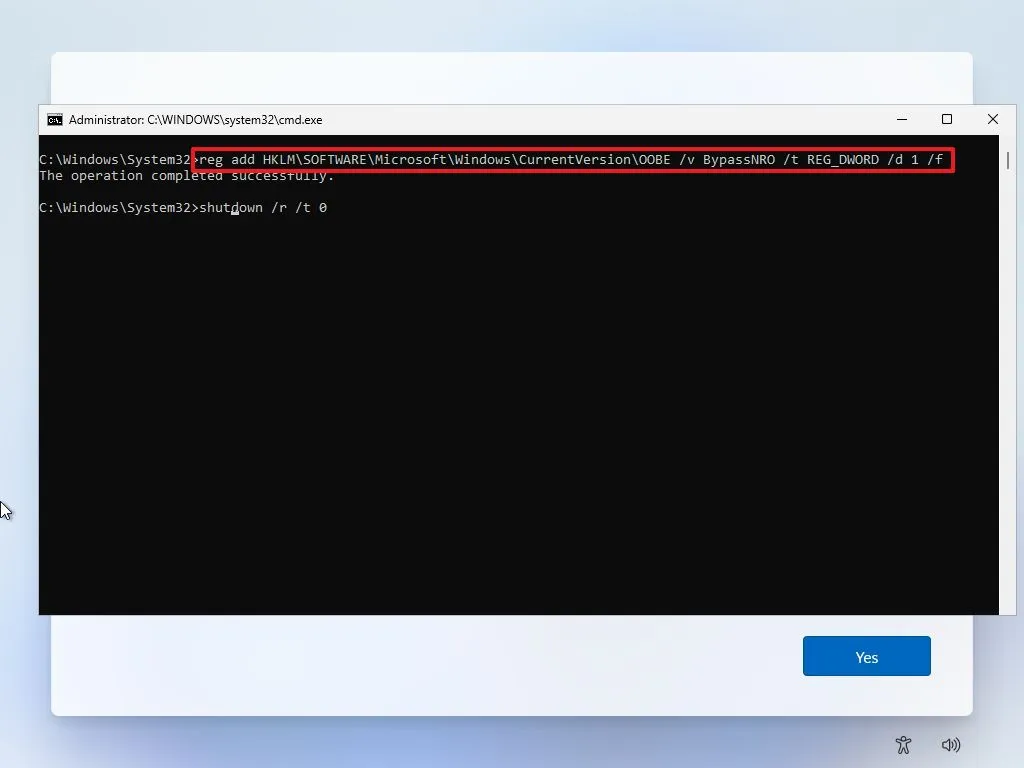
- Type the following command to restart the computer and continue with the local account experience and press Enter:shutdown /r /t 0
- Upon restart, open Command Prompt again using the “Shift + F10” keyboard shortcut on the region settings page.
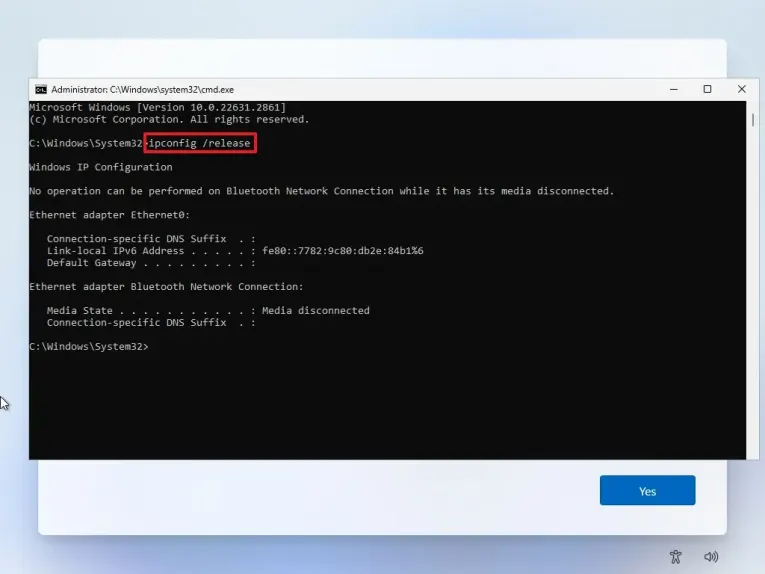
- Type the
ipconfig /releasecommand and press Enter to disconnect from the network.
(Or you can also disable the Wi-Fi connection, unplug the Ethernet cable from the computer, or power off the router or access point temporarily to disconnect from the internet)
Now follow the screens, click on I DON’T HAVE INTERNET as above, then this will show up

Follow the prompts and you should be good to go 🙂 Good luck